Castle Windsor IoC in ASP.NET MVC 2.0 — Easy Setup Guide
In the following text I’m going to share with you the easiest way I found to configure an ASP.NET MVC 2.0 application to use the Castle Windsor IoC container. This will be a purely algorithmic process with no waffle or discussion. Just follow these steps and you will have your project setup to use Inversion of Control using Castle Windsor in under five minutes.Step 1 — Acquire Resources
Download the Castle Windsor package from here http://sourceforge.net/projects/castleproject/files/InversionOfControl/2.1/Castle-Windsor-2.1.1.zip/downloadStep 2 — Reference Castle Windsor in your ASP.NET MVC Application
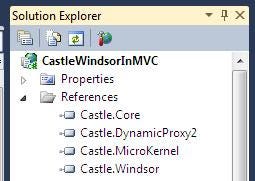
First, you can optionally add a lib folder, if not already present, to your project and copy the required dll’s into it. The required dll’s from the download package (use the 3.5 sub folder) are:
· Castle.Core.dll
· Castle.MicroKernel.dll
· Castle.Windsor.dll
· Castle.DynamicProxy2.dll
Then add a reference to these dll’s in your project.
Step 3 — Custom Controller Factory
Create a new controller factory to your project to enable the use of Castle Windsor. Here is the one I borrowed from this blog post by Imar Spaanjaars which you can add to your project.
namespace CastleWindsorInMVC.Controllers.Factory
{
public class WindsorControllerFactory : DefaultControllerFactory
{
public WindsorContainer Container { get; private set; }
public WindsorControllerFactory()
{
Container = new WindsorContainer();
var controlerTypes = from t in Assembly.GetExecutingAssembly().GetTypes()
where typeof(IController).IsAssignableFrom(t)
select t;
foreach (Type t in controlerTypes)
{
Container.AddComponentLifeStyle(t.FullName, t,
LifestyleType.Transient);
}
}
protected override IController GetControllerInstance(
RequestContext requestContext, Type controllerType)
{
if (controllerType == null)
{
return null;
}
else
{
return (IController)Container.Resolve(controllerType);
}
}
}
}
Imar uses a config file, as many do, but I prefer to configure Windsor in code, so I’ve modified his version of this class to now have a public WindsorContainer property. You’ll see exactly why shortly.Step 4 — Configure Windsor in Application_Start
Almost done now. Start by creating a three-step method:
· Create an instance of your Windsor controller factory
· Use the Container property to register dependencies
· Tell MVC to now use this controller factory — thus enabling IoC
Finish it all off by then calling this method in Application_Start.
As you would expect, here is some code you can use.
private void ConfigureIoC()
{
//1. Create the windsor factory
WindsorControllerFactory factory = new WindsorControllerFactory();
//2. Register dependencies
factory.Container.Register(
Component
.For
.ImplementedBy
);
//3. Tell MVC to now use this controller factory
ControllerBuilder.Current.SetControllerFactory(factory);
}
protected void Application_Start()
{
AreaRegistration.RegisterAllAreas();
RegisterRoutes(RouteTable.Routes);
ConfigureIoC(); // ← — — The clincher
}