Integration Testing in a Development Environment With SpecFlow — Part 2: Local IIS (Windows IIS)

Last time we got our hands dirty with Cassini — only for me to share the harsh lesson I learned which was to not use it. I then kindly offered no alternative. But to clear my conscience now I will — in this short post, I’ll show you how to integration test in your development environment using Local IIS — the one installed with Windows.Configuring Visual Studio to use Local IIS
To get cracking with IIS the process is really simple:
- open the properties for the web project
- navigate to the web tab
- check “Use Local IIS Web Server”
- hit the “Create Virtual Directory Button”
**Above: **It is as easy as this to host your web site with Local IIS
**Note: **When hitting the “Create Virtual Directory” you may be told you need to install some Windows Components. You can do this easily by “turning on Windows features” in the control panel’s Programs area (in Vista). The options required will be child nodes of “Internet Information Services”.
This process does seem a little too easy, so you can put your mind to rest by starting the application (F5) and/or looking at the virtual directories installed via the IIS Management Console. Easy.Updating the Specs to Accommodate IIS as Integration Testing Server
With the site now hosted on Local IIS, the server is sitting there, happy to serve requests aimed at our web site whenever. Knowing this means none of the Cassini set-up code is required. All that is needed is for the integration specs to be pointed to the virtual directory of the web site.
For these two requirements to be met, the WebServerStepsEnvironmentManger can be done away with and deleted (if you don’t at least comment it out, SpecFlow will still see the bindings and process them); while the home page url constant in the step file can point to the home page located in the virtual directory. The slightly-updated step file now looks like so:
namespace Specs.Integration.Steps
{
[Binding]
public class SpecialHomePageInputValuePerformsSpecialRedirect
{
private IE _browser;
private const string SpecialInputTextBoxID = “abcdefg”;
private const string HomePageUrl = @”http://localhost/SpecFlowIntegrationTesting”;
public SpecialHomePageInputValuePerformsSpecialRedirect()
{
_browser = new IE();
}
[Given(@”I am viewing the home page”)]
public void GivenIAmViewingTheHomePage()
{
_browser.GoTo(HomePageUrl);
}
[When(@”I enter (.*) in the special value text box and submit the form”)]
public void WhenIEnterWebSecurityEssentialsInTheSpecialValueCheckbox(string secretInputValue)
{
var specialInputTextBox = _browser.TextField(SpecialInputTextBoxID);
specialInputTextBox.TypeText(secretInputValue);
_browser.Buttons.First().Click();
}
[Then(@”I should be redirect to www.OWASP.org”)]
public void ThenIShouldBeRedirectToWww_OWASP_Org()
{
var currentBrowserUrl = _browser.Url;
// sometimes browsers and url casings can mess up tests — lets go toUpper() to remove any potential issues
Assert.IsTrue(currentBrowserUrl.ToUpper().Contains(“WWW.OWASP.ORG”), “We were not redirected to the OWASP web site”);
}
}
}Does it still Work?
Of course it does:
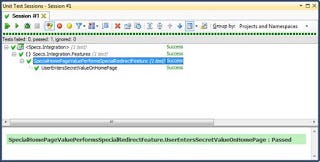
**Above: **Same results, different serverA Few Quick Life-Savers
If you do take this approach, remember or refer back to these key points I have personally encountered:
- In web.config you may need to copy your http handlers and modules from the System.Web section to the corresponding locations in System.WebServer section (NHibernate/Castle Active Record was one)
- If you create a .NET 4 application, make sure the application pool it uses is .NET 4 enabled via the IIS Management Console
- The application pool will also need permissions to access your database (if there is one)
- Due to the extra url segment, your root-relative css styles may not work. Go relative if you can
**Conclusion
**We’re smart. And we know that using Cassini for testing is not smart. We also know that we need to replicate the production environment as closely as possible when integration testing.
Using the IIS installed with Windows takes us a lot closer to that ideal. If it is the same version that you will be hosting your application on in the wild, then you’ve hit the jackpot.
With this approach, we have also seen that configuration is very easy, and setting up integration tests is too. Compared to all the faff with Cassini, this is definitely an easier ride.
But this story is not yet fully told. Scott Gu announced there is to be an IIS Express — that can be used in the same way as Cassini with the full capabilities of IIS.
IIS Express is already here….if you use Web Matrix. But there’s still no (official) “fix” to make it work with Visual Studio. So stay tuned for when there is and I compare that option.