WPF DataGrid DataDialogs

As a WPF flirt I can’t give you best practices or ideals - but I can give you a simple technique for adding buttons to each row in a WPF DataGrid that (in this case) will display contextual information in a dialog box.
It will also provide a good reference to my future self when the gods of HTML reclaim the UI portion of my brain (the part that is pathetic at visual designs).Data Model
To celebrate BT’s double screw-up at trying to get broadband installed in my new home, this demo will be based on companies that suck. Hence…
public class CompanyThatSucks
{
private readonly String _reason;
public CompanyThatSucks(string name, int suckynessRating, int
howMuchWouldILoveToSeeThemGoBankrupt, string reason)
{
Name = name;
SuckynessRating = suckynessRating;
HowMuchWouldILoveToSeeThemGoBankrupt = howMuchWouldILoveToSeeThemGoBankrupt;
_reason = reason;
}
public String Name { get; private set; }
public Int32 SuckynessRating { get; private set; }
public Int32 HowMuchWouldILoveToSeeThemGoBankrupt { get; private set; }
public String GetReasonForSucking()
{
return _reason;
}
}
}Data on Display
Hooked up via data binding to a view model, here is the live list of companies that suck. Because I share this list with my mom, and she moans by the essay, it would take too much space to show the reason in a cell. So I’ll pop it up in a dialog when a button is pressed.DataGrid Action Buttons
Here’s what we want, right?:
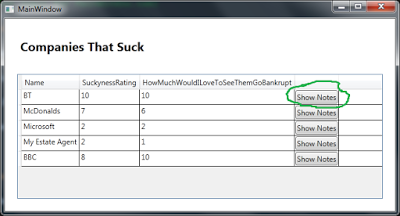
Here’s how to get it:
public MainWindow(){InitializeComponent();this.DataContext = new ViewModel();"Suckers is the DataGrid"Suckers.Loaded += (x, y) => AddShowNotesColumnToDataGrid();}private void AddShowNotesColumnToDataGrid(){var button = new FrameworkElementFactory(typeof (Button));button.SetValue(Button.ContentProperty, "Show Notes");button.AddHandler(Button.ClickEvent,var column = new DataGridTemplateColumn{CellTemplate = new DataTemplate() { VisualTree = button},DisplayIndex = 3,};Suckers.Columns.Add(column);}}
-
Create a button thingy with that factory thingy
-
Set the button’s text
-
Create a new column for the DataGrid and mangle it to contain the button
a. The DisplayIndex affects ordering of the columns — this one is at the end
- Add the column to the DataGridThis Relationship is all about the Dialog
In two simple steps we can make that ornamental button come to life quicker than you can cancel your account with BT (I have the stats).1. Create a Simple Method to Show a Dialog
private void ShowDialog(string content){var w = new Window{Height = 400,Width = 400,};w.Content = new TextBox{Text = content,Foreground = new SolidColorBrush(Colors.White),Background = new SolidColorBrush(Colors.Black)};w.ShowDialog();}}2. Bind to the Button’s Event Handler
This step of my trick is where the buttons actually do something that relates to the row of data they represent. There are two sub-steps.
1. Get the “Reason for sucking” from a button
private string GetReasonForSucking(Button sender){var companyThatSucks = (CompanyThatSucks)sender.DataContext;return companyThatSucks.GetReasonForSucking();}}
2. Actually bind to the button’s handler
button.AddHandler(Button.ClickEvent,new RoutedEventHandler((sender, args) => ShowDialog(GetReasonForSucking((Button)sender))));Here I’m binding to the button’s click event. I’m using the method in sub-step 1 above to get information from the button’s data context and present it to the user in a dialog using the other little method I created above. This code goes below the line that sets the buttons text.Result
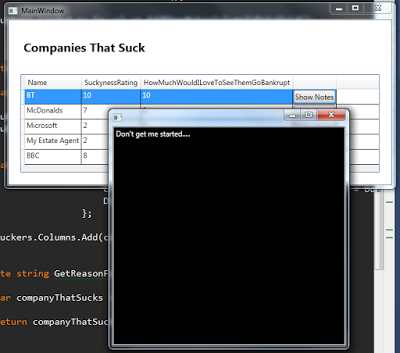 Conclusion
Today’s moral of the story is to not get angry with certain organisations because they repeatedly inconvenience you after you trip over yourself triple-confirming things will happen on certain days.
The sub-plot was a little less abstract — an education in one technique for augmenting the functionality of a WPF DataGrid by adding custom buttons that can perform actions specific to the row of data they belong to.