Git-Tfs: Step-by-Step

<! — /* Font Definitions / @font-face {font-family:Wingdings; panose-1:5 0 0 0 0 0 0 0 0 0;} @font-face {font-family:Wingdings; panose-1:5 0 0 0 0 0 0 0 0 0;} @font-face {font-family:Cambria; panose-1:2 4 5 3 5 4 6 3 2 4;} @font-face {font-family:Calibri; panose-1:2 15 5 2 2 2 4 3 2 4;} @font-face {font-family:Tahoma; panose-1:2 11 6 4 3 5 4 4 2 4;} / Style Definitions */ p.MsoNormal, li.MsoNormal, div.MsoNormal {margin-top:0cm;

margin-right:0cm; margin-bottom:10.0pt; margin-left:0cm; line-height:115%; font-size:11.0pt; font-family:”Calibri”,”sans-serif”;} h1 {mso-style-link:”Heading 1 Char”; margin-top:24.0pt; margin-right:0cm; margin-bottom:0cm; margin-left:0cm; margin-bottom:.0001pt; line-height:115%; page-break-after:avoid; font-size:14.0pt; font-family:”Cambria”,”serif”; color:#365F91;} h2 {mso-style-link:”Heading 2 Char”; margin-top:10.0pt; margin-right:0cm; margin-bottom:0cm; margin-left:0cm; margin-bottom:.0001pt; line-height:115%; page-break-after:avoid; font-size:13.0pt; font-family:”Cambria”,”serif”; color:#4F81BD;} a:link, span.MsoHyperlink {color:blue; text-decoration:underline;} a:visited, span.MsoHyperlinkFollowed {color:purple; text-decoration:underline;} p.MsoAcetate, li.MsoAcetate, div.MsoAcetate {mso-style-link:”Balloon Text Char”; margin:0cm; margin-bottom:.0001pt; font-size:8.0pt; font-family:”Tahoma”,”sans-serif”;} p.MsoListParagraph, li.MsoListParagraph, div.MsoListParagraph {margin-top:0cm; margin-right:0cm; margin-bottom:10.0pt; margin-left:36.0pt; line-height:115%; font-size:11.0pt; font-family:”Calibri”,”sans-serif”;} p.MsoListParagraphCxSpFirst, li.MsoListParagraphCxSpFirst, div.MsoListParagraphCxSpFirst {margin-top:0cm; margin-right:0cm; margin-bottom:0cm; margin-left:36.0pt; margin-bottom:.0001pt; line-height:115%; font-size:11.0pt; font-family:”Calibri”,”sans-serif”;} p.MsoListParagraphCxSpMiddle, li.MsoListParagraphCxSpMiddle, div.MsoListParagraphCxSpMiddle {margin-top:0cm; margin-right:0cm; margin-bottom:0cm; margin-left:36.0pt; margin-bottom:.0001pt; line-height:115%; font-size:11.0pt; font-family:”Calibri”,”sans-serif”;} p.MsoListParagraphCxSpLast, li.MsoListParagraphCxSpLast, div.MsoListParagraphCxSpLast {margin-top:0cm; margin-right:0cm; margin-bottom:10.0pt; margin-left:36.0pt; line-height:115%; font-size:11.0pt; font-family:”Calibri”,”sans-serif”;} span.Heading1Char {mso-style-name:”Heading 1 Char”; mso-style-link:”Heading 1”; font-family:”Cambria”,”serif”; color:#365F91; font-weight:bold;} span.Heading2Char {mso-style-name:”Heading 2 Char”; mso-style-link:”Heading 2”; font-family:”Cambria”,”serif”; color:#4F81BD; font-weight:bold;} span.BalloonTextChar {mso-style-name:”Balloon Text Char”; mso-style-link:”Balloon Text”; font-family:”Tahoma”,”sans-serif”;} .MsoChpDefault {font-family:”Calibri”,”sans-serif”;} .MsoPapDefault {margin-bottom:10.0pt; line-height:115%;} @page WordSection1 {size:595.3pt 841.9pt; margin:72.0pt 72.0pt 72.0pt 72.0pt;} div.WordSection1 {page:WordSection1;} /* List Definitions */ ol {margin-bottom:0cm;} ul {margin-bottom:0cm;} →
I’ve recently had the pleasure of setting up git-tfs to minimise my daily contact with Tfs to an absolute minimum. While the process is quite easy, a few minor things tripped me up and took a bit of faffing and “stackoverflowing” to figure out.
I would hate for other people who don’t have as much time to persevere to just accept tfs. So I made this simple step-by-step guide that is foolproof (VB drag and drop experts excluded).Install Git for Windows
Head over to the download page for msysgit and pick the latest full installer version. When downloaded, install the application.
You will be asked to select components in a dialog almost immediately. At this point, check the boxes next to “Git Bash Here” and “Git GUI Here” underneath Windows Explorer integration.
After that just keep clicking next and accept the defaults.Download Git-Tfs
Now make your way to the git-tfs github page. Click the “downloads” button and select the latest package (specifically not the full source code download).
Then extract this package to C:\git-tfs. If you don’t like this location just stick with it for now so you can follow the example. You can move it later on and update things accordingly.Wire-up Git-Tfs
At this point, git-tfs is not integrated with git. To confirm this, right-click a folder in Windows Explorer and choose “Git Bash here”. If you then type “git-tfs” you will see the command is not found.
Fixing this is easy — you just need to append the path to git-tfs to your “path” environment variable:
· Click start/windows icon
· Right-click on “Computer” and select “Properties”
· Select “Advanced System Settings”
· Click the “Environment Variables” button
· Edit the “Path” System variable — append it with “;C:\git-tfs”

You can confirm this worked by opening up the bash again (on any folder) and trying the “git-tfs” command and observing the available optionsCloning a Repository
Here we have to make contact with the Tfs server. But first, we need to find the path to it. The easiest way to do this is to:
-
Open visual studio
-
Click the “Team” drop down menu
-
Select “Connect to team foundation server”
-
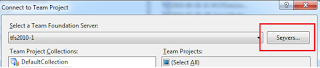
Click the “Servers” button
-
Note down the url of the server you want to access
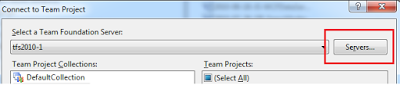
Now you need need to suffix the Tfs path with the name of the collection that contains the repository you want to checkout and work on – quickest way to find this is right at the top of the “Team Explorer” floating menu in Visual studio. You can also see them on the image above (e.g. DefaultCollection).
For example: http://Tfs:1000/DefaultCollection
The last bit of required information is the name of the branch you want to work on (clone). If you select a branch inside Tfs’s “Source Control Explorer” tab, it will give you this, starting with “$” in the “Source Location” text box right at the top. E.g. $/this/is/my/branch
With all the information available, click on a folder in windows explorer where you’d like to check out your branch and create a git repository. Select “Git Bash here”, then the command: git clone <tfsurl /collection name> <name of branch, starting with $>.
Git will now do its magic and you’re ready to go.Ignoring Files
Setting up a global ignore file is something you’ll want to do to avoid committing all those ReSharper and debug files. This is quite simple to achieve:
· Navigate to your user directory e.g. c:/Users/YourMom
· Create a file called “.gitignore_global.txt”
· Shift+right-click inside the window and “open a command window here”
· Type the command “REN .gitignore_global.txt .gitignore_global”

Now you need to register this file with git: bring up a bash anywhere and type: git config — global core.excludesfile ~/.gitignore_global
To confirm it worked, in the bash type: git config — global core.excludesfile*. *It should echo back the full path to the ignore file.
To get you started with some exclusion rules, try opening the .gitignore_global file with notepad and add these lines:
ReSharper/
bin
.gitignore
Google and the phrase “gitignore” will teach you the rest.