Making Your Linux Desktop Spellbinding
A desktop environment styled to my intricate needs makes all those hours I spend at a computer feel like I’m an excited child again. Vibrant colours, futuristic effects and everything positioned to my liking makes me both super-happy and super-productive.
I value a compelling desktop environment as highly as a comfy chair or a chirpy colleague.
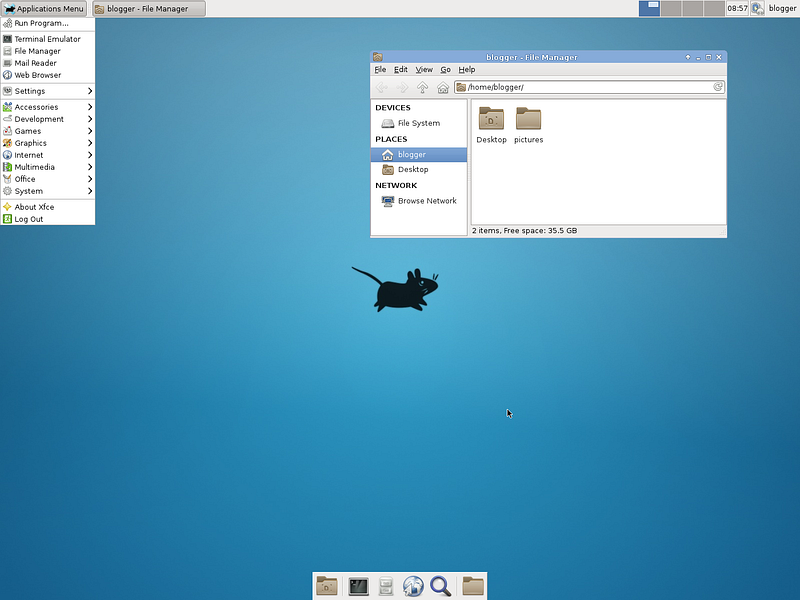
Arch Linux gives you incredible choice and flexibility because it’s a bare-minimum style of distro where you only add what you want. Because of this the defaults are usually quite basic in looks. As you can see below, Xfce, my choice of DE when using Arch (you can pick others like gnome, KDE, etc), has quite a basic look that lacks the eye candy of other distros such as Ubuntu that style up Xfce by default.
But to me that’s a good thing. It encourages me to tinker away to get exactly the look and feel that I’m comfortable with. You can see my preference below, which is only a few customisations away from the image above.

It’s up to you to make your desktop perfect for yourself — but I’ll try and help by showing you where to look and what to change.
Whilst this demo applies to Arch Linux & Xfce you can definitely use with other distros and DEs/WMs — I have something very similar using Arch and Openbox.
For whatever style you want to go for, you basically need to:
- Pick a wallpaper
- Choose a gtk theme for styling window content
- Pick a window manager theme for styling window borders
- Set some nice fonts
- Pick some icons
- Choose and style your panel(s)
We’ll now go through each of those steps.Start with a Background from Deviant Art
I love vibrant 3d patterns that transport me into a futuristic, techy world. Over at Deviant Art you can find hundreds of these in the category *digital art → fractal art. *For this post I’ll take blue tornado:
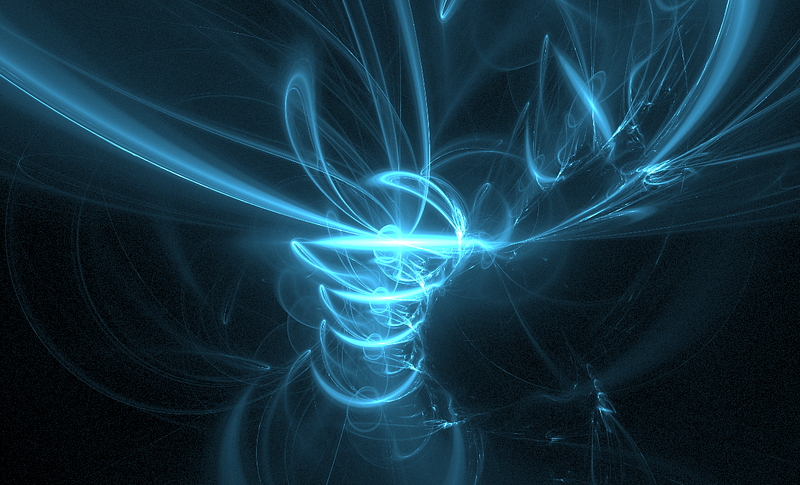
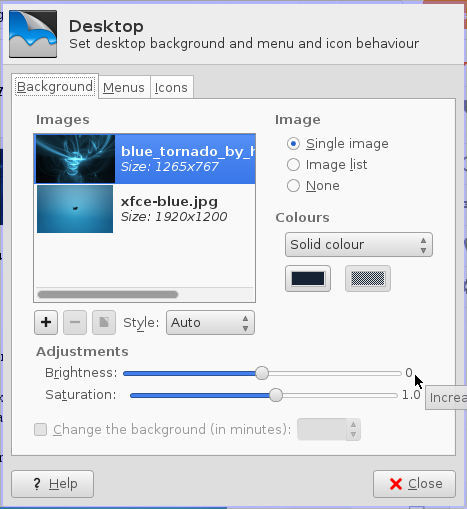
And save it into ~/pictures. Then you can use Xfce settings manager (Applications menu -> Settings -> Settings Manager -> Desktop) to set it as your background:
 Nitrogen for Setting Desktop Wallpapers with Openbox
Nitrogen is a small tool for setting your desktop background. It’s a good choice when using Openbox.. You can install it in arch with pacman -S nitrogen.
You can then run nitrogen (command line or app launcher). First you need to select *preferences *and add the folder where your pictures are stored:

If you want your settings to persist then you’ll need to run nitrogen — restore when your session starts. In Openbox you would place that command in *~/.config/autostart (followed by ‘&’).*Clean up Your Windows
If you open up a window, such as a file manager, you might think it looks antiquated and bland. Have a look at this for example:

If you try and change the theme in Xfce’s settings manager, you’ll find that all of them still look a bit weird and out of date. To fix this problem you need a gtk theme.
You can find loads up on gnome look (be sure to pick a gtk theme) but I highly-recommend the evolve theme. Have a look and then download one that you like.Install Your GTK Theme and Apply it with LxAppearance
Once you’ve downloaded your theme you need to extract it and copy the folder into /usr/share/themes:
jimmy: cd ~/Downloadsjimmy: unzip evolve___gtk3_theme_by_satya164-d4dn66o.zipArchive: evolve___gtk3_theme_by_satya164-d4dn66o.zip39f094998b3f94a54f64d6f7a9968a3d3e02f7d1 creating: Evolve/...jimmy: lsEvolve evolve___gtk3_theme_by_satya164-d4dn66o.zipjimmy: sudo mv Evolve /usr/share/themesTo apply a gtk theme I recommend installing lxappearance — the LXDE settings manager. I recommend this because it works across DEs. I use it on Xfce and Openbox.
You can install lxappearance with pacman: pacman -S lxappearance. Also, install the package *gtk-engine-murrine *so gtk themes render properly.
Then you can then run the lxappearance command from an app launcher and choose your theme:
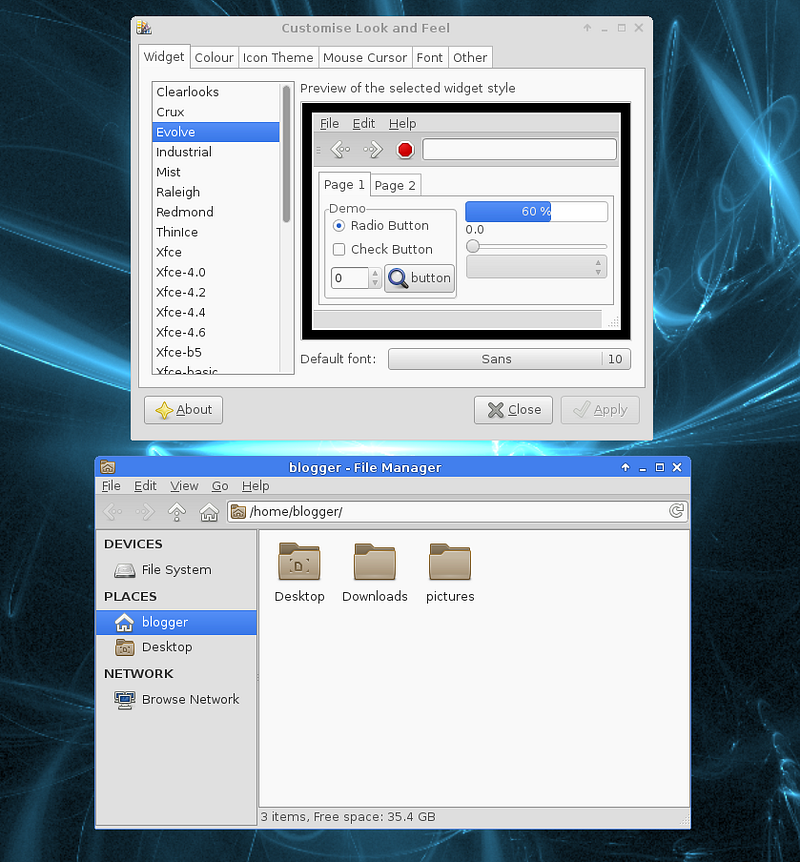
As you can see, things are starting to look better. But…..Goodnight Thunar
Thunar is the default file manager in Xfce but I find it never looks quite right, even when everything else has been styled perfectly. It’s normally the top portion of the window that looks all Windows 95.
There’s a simple answer — use Nautilus. I find Nautilus looks good when the rest of your theme is in place. You can install it with pacman -S nautilus.
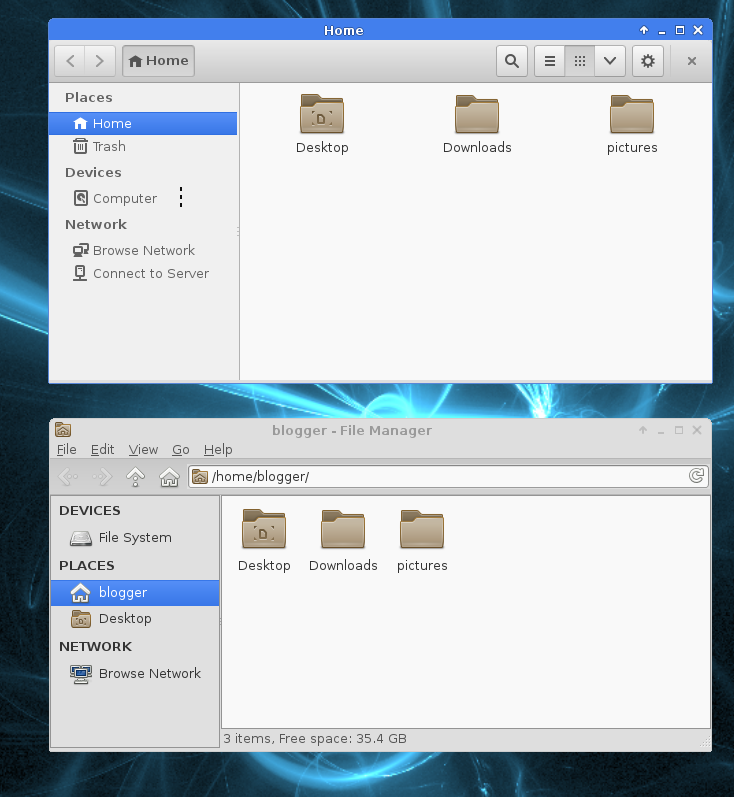
Nautilus is on top in the image above.Try to ignore icons and window borders, and just focus on the insides of the windows.
You will need to set Nautilus as your default file manager in Settings Manager -> Preferred Applications.Window Dressing Time
Styling the borders of your windows is (mostly) not handled by the gtk theme, it is handled separately. Therefore, you need to download another theme.
Window styles do usually differ across DEs, so Openbox, Xfce and Gnome all have their own specific styles. For Xfce you can choose one from xfce look (they are known as xfwm themes).All Window Borders Look Clunky and Old-fashioned
I’ve never found a window manager theme that I really liked. They always look clunky and out of place on my futuristic-style desktops. Therefore, I tend to find styles that remove the border.
My favourite minimalist style for xfce is the Simple Thin Borders theme. As with the gtk theme, you just need to extract it and copy it to /usr/share/themes. Xfce can detect from the folder structure what kind of theme it is.
The window manager theme can be set in Settings Manager -> Window Manager:
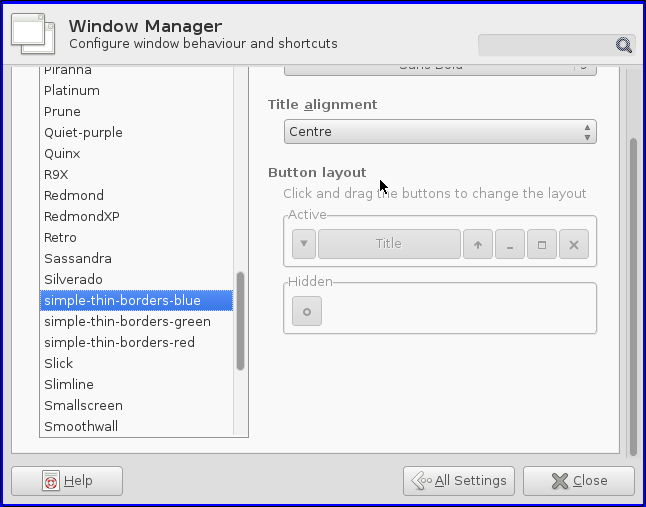
In Openbox you can set this with *obconf (Openbox configuration manager).*Add a bit of Transparency and Glow
When you pick a vibrant wallpaper you can add transparent effects that help the style of the image to style up other aspects of the UI. You’ll want to play around with these, but in xfce they are located in Settings -> Window Manager Tweaks.
Here are my settings to replace the out-of-place blue borders with glowing semi-transparent ones:
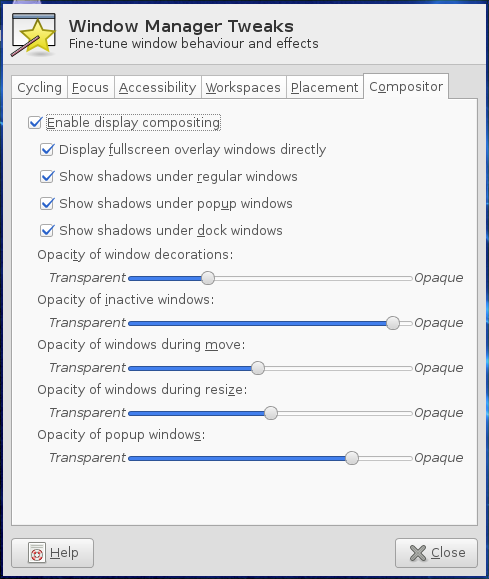
Some console emulators require separate style settings, such as terminator. So you might need to style those independently. You can right-click terminator and choose preferences. You will then see all of the options.Grab a Font — ‘Deja Vu Sans Book’ Every Time
Like most other places, Arch has a very minimal set of fonts to begin with. I highly-recommend you install the *ttf-dejavu *package and set Deja Vu Sans Book as your default. I am in love with the font.
Once you’ve installed the package you can use the Xfce *Settings Manager -> Appearance *menu or *lxappearance *(which you can use in Openbox). On the fonts tab you can set your font.
 Icons
Icons
Xfce’s default icons aren’t my favourite. Not by a long shot. Head over to gnome look and choose a set that you like.
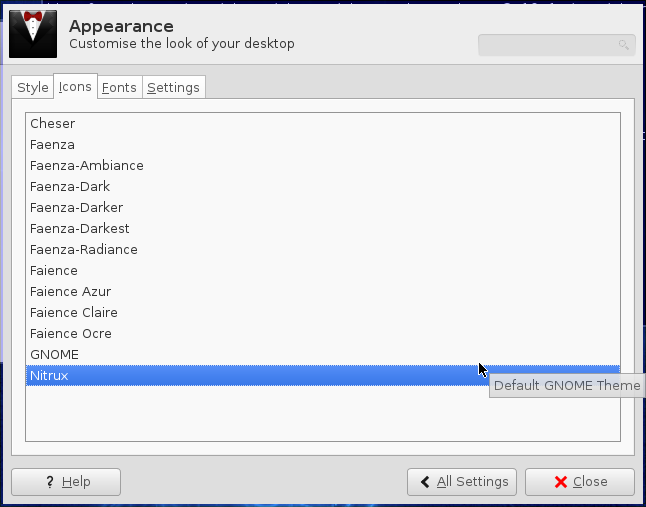
I like the *Faience *theme. There’s even a package for them that you can install with pacman pacman -S faience-icon-theme.
If you choose to download an icon set, extract it and copy to /usr/share/icons.Setting Your Icon Set
It’s best to set your icons using Settings Manager -> Appearance -> Icons. However, you can use lxappearance if you are using Openbox.. You can use *lxappearance *in Xfce if you want to preview the icon sets before choosing them, though.
 The Panel
Things are looking much better now — it’s just the panels that need teleporting back to 1995.

Most DEs have their own kind of panel. Xfce lets you have multiple of them on different parts of the screen. However, I look outside of Xfce for my panel.
Tint2 is a very light-weight panel/system-tray that looks brilliant by default. It works across DE/WMs, so I use it with Xfce and Openbox.
To install Tint2 on Arch just run pacman -S tint2. You’ll then need to start it when your session starts by adding an Xfce autostart file called *~/.config/autostart/tint2.desktop *with the content:
[Desktop Entry]Encoding=UTF-8Version=0.9.4Type=ApplicationName=tint2Comment=tint2Exec=tint2OnlyShowIn=XFCE;StartupNotify=falseTerminal=falseHidden=falseBeing mostly-keyboard driven I tend to disable the bottom Xfce panel by going into Settings Manager -> Panel, then selecting *Panel 2 *in the dropdown and clicking the remove (minus symbol) button..
I still find the “start” button is still useful for exploring installed applications. So I keep the top panel but make it transparent by cranking the alpha down to 0:

I also like the top panel to be hidden unless I place my cursor at the top of the screen, so I select the option “Automatically show and hide….”:
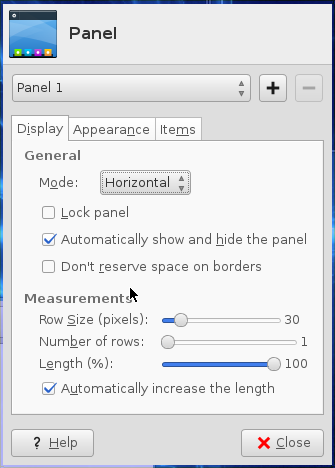
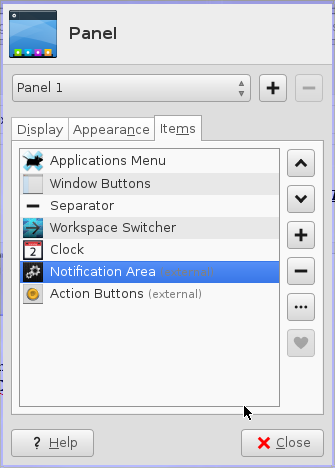
I then turn off the text on panel items by first going into *Settings Manager -> Panel -> Items *and then choosing the *Applications Menu *item and de-selecting “show button title”. This removes text for the “start” button.

I then select the *Window Buttons *item on the *Panel -> Items *menu and turn off text for all of the other items on the panel (running applications). I set their background to transparent, too, by choosing *“*show flat buttons”:

If you want Tint2 to act as a system tray (showing icons for network manager, skype, hipchat etc) you will also need to remove the “notifications” panel from the Xfce panel.
 Hope That Was Helpful
Here we are then: super-lightweight Arch Linux and Xfce looking modern, slick and definitely not competing with Windows 3.1 for the ugly award.
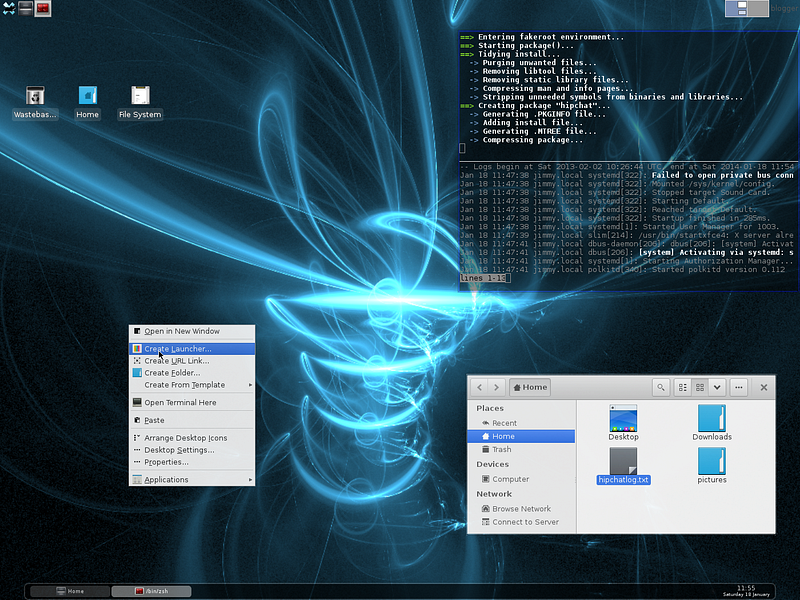
There’s lots of fun and lots of benefits by having a desktop environment that looks good and is adjusted around your preferences.
I’ve given you an insight into my thinking, but I’ve also shown you all of the steps necessary for you to begin tinkering away so you can feel like a little kid, too.
Don’t get too addicted.More Articles and Blogs